Redux Toolkit is a powerful library for state management in React applications. In today's tutorial, we'll explore how to implement a shopping cart for an e-commerce site, illustrating step by step how to use this library effectively.
A Bit of Theory
Redux is a state management library for JavaScript applications, commonly used with React but also compatible with other frameworks. Redux Toolkit is a library specifically designed to simplify the configuration and usage of Redux in React.
It is a library designed for global state management in applications, which allows access to the state from any component in the application. From any component, actions can be dispatched to modify the state, even if they are on different pages.
The main components in a Redux app are:
Store: Represents the container of the global state of the application.
Actions: These are objects that send data from the application to the store.
Reducers: These are pure functions that accept the current state and an action to return a new state.
Dispatch Function: The dispatch function is the method used to send actions to the store.
Selectors: Selectors are functions that extract and transform data from the Redux state.
Initial Setup
Development Environment Setup
We will start with a template that I have already prepared, complete with CSS, components, and libraries, focusing exclusively on Redux Toolkit, ready to use. The template is a classic application built in React: it is a small e-commerce with two pages, "Home" and "Cart." On the "Home" page, there is a list of items to add to the cart. On the "Cart" page, we have the actual shopping cart, where you can add, reduce, or remove items, update the cart, or clear its contents.
How to proceed: you can download the template and follow the development step by step with the guide, or you can visit the branch shopping-cart-redux-implementation and review the commits.
Installing Required Dependencies: Redux Toolkit and React-Redux
How to install Redux Toolkit:
npminstall @reduxjs/toolkit react-redux
Creating Redux Store
Create a folder called store inside the srcdirectory. Next, create the file index.ts inside this folder.
src/store/index.ts
1import{ configureStore }from"@reduxjs/toolkit";23exportconst store =configureStore({4 reducer:{},5})67exporttypeRootState=ReturnType<typeof store.getState>8exporttypeAppDispatch=typeof store.dispatch
Here we configure the store, where we will place our reducers. TheRootState type represents the structure of the state in our store, while AppDispatch is the type used for dispatches.
Connecting the Store to React
After configuring the store, let's connect it to our React application.
src/index.tsx
1importReactfrom"react";2importReactDOMfrom"react-dom/client";3import"./index.css";4importAppfrom"./App";5import"bootstrap/dist/css/bootstrap.min.css";6import"bootstrap-icons/font/bootstrap-icons.css";7import{ store }from"./store";8import{Provider}from"react-redux";910const root =ReactDOM.createRoot(11document.getElementById("root")asHTMLElement12);13root.render(14<React.StrictMode>15<Providerstore={store}>16<App/>17</Provider>18</React.StrictMode>19);
Creating a State Slice with Redux Toolkit
After creating the store, let's move on to creating a slice. A slice in Redux Toolkit represents a section of the application's state, where our specific state will be stored. To create a slice, we use the createSlice function with the following properties:
Name: The name given to the piece of state, in this case 'cart'.
InitialState: An object that defines the initial state.
Reducers: A property that contains our reducers, the functions responsible for modifying the state.
Inside the store folder, create a subfolder called cart and inside it, the cartSlice.ts file.
After creating the slice, export the reducer cartSlice.reducer and add it to the configureStore located in store/index.ts.
src/store/index.ts
1import{ configureStore }from"@reduxjs/toolkit";2importcartReducerfrom"./cart/cartSlice"34exportconst store =configureStore({5 reducer:{6 cart: cartReducer,7},8})910exporttypeRootState=ReturnType<typeof store.getState>11exporttypeAppDispatch=typeof store.dispatch
Implementing Features
Implementing Actions
After completing the setup, we can proceed with creating our CRUD logic. We'll start with actions. Actions are functions that receive data as a parameter (through action.payload) and are essential in reducers. Thanks to Redux Toolkit, we can define our actions directly within the slice, simplifying state management.
src/store/cart/cartSlice.ts
1import{ createSlice }from"@reduxjs/toolkit";2importtype{PayloadAction}from"@reduxjs/toolkit";34exportinterfaceItem{5 id:number;6 name:string;7 price:number;8 qty:number;9}1011exportinterfaceCartState{12 items:Item[];13 total:number;14 amount:number;15}1617const initialState:CartState={18 items:[],19 total:0,20 amount:0,21};2223exportconst cartSlice =createSlice({24 name:"cart",25 initialState,26 reducers:{27addItem:(state, action:PayloadAction<Item>)=>{28const existingItemIndex = state.items.findIndex(item => item.id=== action.payload.id);2930if(existingItemIndex !==-1){31// If the item exists, only increment its quantity32 state.items[existingItemIndex].qty+=1;33}else{34// Add the item35 state.items.push(action.payload);36}3738// Update the total and amount39 state.total= state.items.reduce((total, item)=> total + item.qty,0);40 state.amount= state.items.reduce((amount, item)=> amount +(item.price* item.qty),0);41},42},43});4445exportconst{ addItem }= cartSlice.actions;4647exportdefault cartSlice.reducer;
To type the action parameter, we use the PayloadAction<Item> type from the Redux Toolkit library. After that, we export our action with export const { addItem } = cartSlice.actions;, which can be used anywhere in the app.
It's important to know that within reducers, the state we work with is immutable: we operate on a sort of copy of the original state. This happens because Redux Toolkit uses the library immer.js, which allows us to modify the state safely, avoiding undesirable side effects.
TIPS: Since we use immer.js in reducers, if we try to do a console.log(state) inside reducers, we will get an object with an unusual structure. To correctly view the object, use the current function from Redux Toolkit like this: console.log(current(state));
Using State and Actions in Components
Now, we will export our state and action within our app. We'll use the useSelector hook to retrieve the state and the useDispatch hook to dispatch actions.
useSelector
Let's start by using the useSelector hook to spread the Redux state throughout the app.
The RootState type, which we defined in store/index.ts, is used in selectors.
Apply the following changes:
src/pages/Cart.tsx
1importCartItemListViewfrom"../components/CartItemListView";2import{ useSelector }from"react-redux";3import{RootState}from"../store";45functionCart(){6const amount =useSelector((state:RootState)=> state.cart.amount);7const total =useSelector((state:RootState)=> state.cart.total);89return(10<divclassName="m-2">11<h1className="text-center">Your Cart</h1>12<CartItemListView/>13<divclassName="d-flex justify-content-center align-items-center gap-5 p-4">14<pclassName="fs-3 m-0">15 Total ({total} items): €{amount.toFixed(2)}16</p>17<divclassName="d-flex align-items-center button-container gap-1">18<buttontype="button"className="btn btn-success flex-shrink-0 fs-5">19 Save Cart
20</button>21<buttontype="button"className="btn btn-danger flex-shrink-0 fs-5">22 Delete all
23</button>24</div>25</div>26</div>27);28}2930exportdefaultCart;
TIPS: Be careful when using useSelector in this way.
Updating even just one of these properties could cause a re-render of other components that use them, leading to performance issues. It is recommended to use a specific selector for each piece of state in order to minimize re-renders.
src/components/Navbar.tsx
1import{Link}from"react-router-dom";2import{RootState}from"../store";3import{ useSelector }from"react-redux";45constNavbar=()=>{6const total =useSelector((state:RootState)=> state.cart.total);78return(9<navclassName="navbar bg-primary"data-bs-theme="dark">10<divclassName="container">11<LinkclassName="navbar-brand fs-3"to="/">12 Shopping Cart
13</Link>14<Link15className="navbar-brand d-flex align-items-center gap-1"16to="/cart"17>18<iclassName="bi bi-cart large-icon"/>19<span>{total ? total :""}</span>20</Link>21</div>22</nav>23);24};2526exportdefaultNavbar;
In this way, you can apply logic before returning the state.
A powerful tool that we won't cover in our cart app tutorial is createSelector. It is a Redux Toolkit function capable of creating advanced selectors that are memoized.
1import{ createSelector }from'@reduxjs/toolkit';23constselectProducts= state => state.products;4constselectCartItems= state => state.cart.items;56const selectTotal =createSelector(7[selectProducts, selectCartItems],8(products, cartItems)=>{9return cartItems.reduce((total, itemId)=>{10const product = products.find(product => product.id=== itemId);11return total + product.price;12},0);13}14);15...16const total =useSelector(selectTotal);
useDispatch
After using our selectors, let's move on to using the useDispatch hook to trigger the addItem action we created earlier.
As we have seen, we exported our state and actions throughout the app. Even at this point, we can already see the power of this library, and we have only just started. Later, we will explore other interesting features.
Creating All Other CRUD Actions
Let's create the actions. Afterward, we'll use these actions in the various components of the application.
src/store/cart/cartSlice.ts
1import{ createSlice }from"@reduxjs/toolkit";2importtype{PayloadAction}from"@reduxjs/toolkit";34exportinterfaceItem{5 id:number;6 name:string;7 price:number;8 qty:number;9}1011exportinterfaceCartState{12 items:Item[];13 total:number;14 amount:number;15}1617const initialState:CartState={18 items:[],19 total:0,20 amount:0,21};2223// Helper function to update total items and total amount24functionupdateTotals(state:CartState){25 state.total= state.items.reduce((total, item)=> total + item.qty,0);26 state.amount= state.items.reduce((amount, item)=> amount + item.price* item.qty,0);27}2829exportconst cartSlice =createSlice({30 name:"cart",31 initialState,32 reducers:{33// Adds an item to the cart or increments its quantity if it already exists34addItem:(state, action:PayloadAction<Item>)=>{35const existingItemIndex = state.items.findIndex((item)=> item.id=== action.payload.id);3637if(existingItemIndex !==-1){38// If the item exists, only increment its quantity39 state.items[existingItemIndex].qty+=1;40}else{41// Add the item42 state.items.push(action.payload);43}4445updateTotals(state);46},47// Removes one unit of an item or the item itself if quantity is 148removeItem:(state, action:PayloadAction<number>)=>{49const existingItemIndex = state.items.findIndex((item)=> item.id=== action.payload);50if(existingItemIndex !==-1){51// Decrease or remove item based on quantity52if(state.items[existingItemIndex].qty>1){53 state.items[existingItemIndex].qty-=1;54}else{55 state.items.splice(existingItemIndex,1);56}57}58updateTotals(state);59},60// Removes all units of a specific item from the cart61removeAll:(state, action:PayloadAction<number>)=>{62 state.items= state.items.filter((item)=> item.id!== action.payload);63updateTotals(state);64},65// Completely clears the cart66deleteCart:(state)=>{67 state.items=[];68 state.total=0;69 state.amount=0;70},71},72});7374exportconst{ addItem, removeItem, removeAll, deleteCart }= cartSlice.actions;75exportdefault cartSlice.reducer;
1importCartItemListViewfrom"../components/CartItemListView";2import{ useSelector }from"react-redux";3import{RootState}from"../store";4import{ useDispatch }from"react-redux";5import{ deleteCart }from"../store/cart/cartSlice";67functionCart(){8const amount =useSelector((state:RootState)=> state.cart.amount);9const total =useSelector((state:RootState)=> state.cart.total);10const dispatch =useDispatch();1112return(13<divclassName="m-2">14<h1className="text-center">Your Cart</h1>15<CartItemListView/>16<divclassName="d-flex justify-content-center align-items-center gap-5 p-4">17<pclassName="fs-3 m-0">18 Total ({total} items): €{amount.toFixed(2)}19</p>20<divclassName="d-flex align-items-center button-container gap-1">21<buttontype="button"className="btn btn-success flex-shrink-0 fs-5">22 Save Cart
23</button>24<button25onClick={()=>{26dispatch(deleteCart());27}}28type="button"29className="btn btn-danger flex-shrink-0 fs-5"30>31 Delete all
32</button>33</div>34</div>35</div>36);37}3839exportdefaultCart;
TIPS: Refactoring the Slice with createAction and extraReducers
You might have noticed that there's a lot of code in our slice; this might be fine for now, but in a real application, we may need many more actions. This could become confusing, at least from my point of view, which is just a personal opinion. A solution I suggest is to create the actions and reducers separately and then import them into our slice. This way, we will have a clearer separation of logic and cleaner code.
createAction
createAction allows you to create an action with a specified type outside of the slice, preparing any payload to attach to the action. It returns an action object that includes a type field and optionally a payload field.
Let's create a file actions.ts in src/store/cart.
Inside actions.ts, let's create our actions using createAction like this:
Let's create a reducers.ts file in src/store/cart. Here we will move our reducers. The reducers are already created; we just need to move them from the slice and place them in this file.
extraReducers in Redux Toolkit allows a slice to respond to actions that were not created directly within the slice itself. It is particularly useful for making the slice react to actions defined elsewhere in the application.
Now we just need to update the slice.
We will add our actions and reducers to the extraReducers section of createSlice, as this is external logic. Using the builder in extraReducers is very useful; for now, we'll only use addCase to add our actions. Later, we will explore other features that can be implemented with the builder.
In a real project using Redux Toolkit, there may be asynchronous actions, which are actions that modify the state asynchronously. For example, in an e-commerce app, when adding a phone from the home page, it might be necessary to make an API call to the backend, manage the loading state, update the cart slice in the store if the call succeeds, and handle any errors. To keep this basic tutorial simple, we won't create asynchronous actions for every action in our app but will limit it to two basic actions, such as loading the shopping cart when the app starts and one to update the cart from the cart page.
If you want to dive deeper, I recommend checking out the documentation for createAsyncThunk.
createAsyncThunk
createAsyncThunk is a Redux Toolkit function that simplifies the handling of asynchronous actions. It automates the process of dispatching actions for the various states of an asynchronous request: pending, fulfilled, and rejected.
When invoking createAsyncThunk, you need to provide an action type as a string and a payload creator function that returns a promise. Redux Toolkit automatically manages the promise's lifecycle, dispatching actions corresponding to its resolution or rejection states. This eliminates the need to manually write separate case handlers in the reducer to handle the request's state.
Additionally, createAsyncThunk provides a thunkAPI parameter that contains useful functions and data such as dispatch, getState, and rejectWithValue, offering flexible management for asynchronous scenarios.
Before proceeding, you need to start the mock server. To do this, we use the json-server library:
npx json-server --watch db.json --port 5000
If you're unable to start the server, take a look at the documentation. It should start on the first try. I'm mentioning this because the json-server library is being frequently updated these days.
In the src/store/cart/actions.ts file, we will create our actions. We could consider creating a separate file, but for just two actions, it's not worth it.
src/store/cart/actions.ts
1import{ createAction, createAsyncThunk }from"@reduxjs/toolkit";2import{Item}from"./cartSlice";3import{RootState}from"..";45interfaceCartApiData{6 items:Item[];7 total:number;8 amount:number;9}1011exportconst addItem =createAction<Item>("cart/addItem");12exportconst removeItem =createAction<number>("cart/removeItem");13exportconst removeAll =createAction<number>("cart/removeAll");14exportconst deleteCart =createAction("cart/deleteCart");1516//remember to run the command npx json-server --watch db.json --port 500017// Create an asyncThunk to fetch cart data from the server18exportconst fetchCartData =createAsyncThunk<CartApiData>(19"cart/fetchCartData",20async()=>{21const response =awaitfetch("http://localhost:5000/cart");22const data:CartApiData=await response.json();23return data;24}25);2627exportconst saveCart =createAsyncThunk(28"cart/saveCart",29async(action,{ getState })=>{30const state =getState()asRootState;31const{ isLoading,...cart }= state.cart;3233const response =awaitfetch("http://localhost:5000/cart",{34 method:"PUT",35 headers:{36"Content-Type":"application/json",37},38 body:JSON.stringify(cart),39});4041const data =await response.json();42return data;43}44);
Now let's update the slice.
As a new property in cartState, we have added isLoading, which is useful for handling a loading state on the page. Actions created with createAsyncThunk go into extraReducers, where the pending, fulfilled, and rejected states are automatically managed.
src/store/cart/cartSlice.ts
1import{ createSlice }from"@reduxjs/toolkit";2import{3 addItemReducer,4 deleteCartReducer,5 removeAllReducer,6 removeItemReducer,7}from"./reducers";8import{9 addItem,10 removeItem,11 removeAll,12 deleteCart,13 fetchCartData,14 saveCart,15}from"./actions";1617exportinterfaceItem{18 id:number;19 name:string;20 price:number;21 qty:number;22}2324exportinterfaceCartState{25 items:Item[];26 total:number;27 amount:number;28 isLoading:boolean;29}3031const initialState:CartState={32 items:[],33 total:0,34 amount:0,35 isLoading:false,36};3738exportconst cartSlice =createSlice({39 name:"cart",40 initialState,41 reducers:{},42extraReducers:(builder)=>{43 builder
44.addCase(addItem, addItemReducer)45.addCase(removeItem, removeItemReducer)46.addCase(removeAll, removeAllReducer)47.addCase(deleteCart, deleteCartReducer)48//get cart49.addCase(fetchCartData.pending,(state)=>{50 state.isLoading=true;51})52.addCase(fetchCartData.fulfilled,(state, action)=>{53// Handle the fulfilled state by setting the cart data54 state.items= action.payload.items;55 state.total= action.payload.total;56 state.amount= action.payload.amount;57 state.isLoading=false;58})59.addCase(fetchCartData.rejected,(state)=>{60 state.isLoading=false;61})62//save cart63.addCase(saveCart.pending,(state)=>{64 state.isLoading=true;65})66.addCase(saveCart.fulfilled,(state)=>{67// Handle the fulfilled state by setting the cart data68 state.isLoading=false;69alert("cart saved !!!");70})71.addCase(saveCart.rejected,(state)=>{72 state.isLoading=false;73});74},75});76export{ addItem, removeItem, removeAll, deleteCart };7778exportdefault cartSlice.reducer;
Now all that's left is to use our new actions with the useDispatch hook. This time, however, we will type the dispatch with the AppDispatch type, which is necessary for proper typing. Later, we'll see a small trick to avoid having to type the selectors and dispatches every time.
Once the hooks are created, you will only need to replace useSelector and useDispatch in the components. To avoid making the tutorial too long, I'll just include a code snippet to show how to make the replacement.
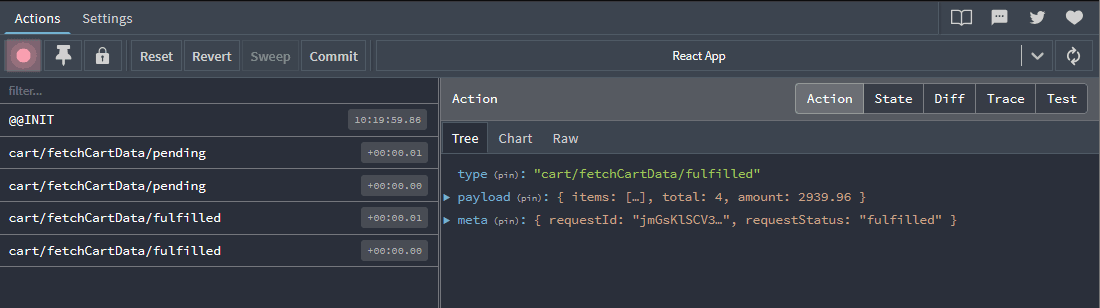
A powerful tool that sets Redux apart is the Redux DevTools, available as a browser extension. This tool is essential for debugging: it records all the actions performed along with their payloads, displays the current state and the differences with the previous state, provides performance control, facilitates testing, and much more.
The tool is enabled by default in configureStore via the devTools property. This property accepts a boolean value to enable or disable the tools, or an object for further configuring the tool.
1const store =configureStore({2 reducer:{3 cart: cartReducer,4},5 devTools: process.env.NODE_ENV!=="production",6});
Builder Methods and Matching Utilities
As you may have noticed, there's a bit of boilerplate code in the slices, where the pending and rejected actions handle the loading state in the same way. Fortunately, Redux Toolkit provides tools to reduce code repetition.
In the builder callback within the extraReducers of the slice, the builder object offers, in addition to addCase, addMatcher, and addDefaultCase.
addMatcher
Allows matching actions based on the action type: if it matches, the specific reducer is triggered.
Practical example: In this example of addMatcher, we check if all actions end with "/pending" (remember that createAsyncThunk automatically generates action names). If the condition is met, it triggers the corresponding reducer.
It is used to trigger a reducer that acts as a default case, executed after all the other specific cases defined in the builder. This allows handling any actions that do not match other specific matchers defined in extraReducers.
Matching Utilities
Once again, Redux Toolkit offers shortcuts to avoid code repetition. We can use Matching Utilities: instead of (action) => action.type.endsWith("/pending"), we can use Redux Toolkit's isPending, which automatically detects if an action is in a pending state. There's also isRejected to recognize rejected actions. There are many other similar utilities; I recommend checking the documentation for more details.
If you've made it this far, congratulations! Thank you for reading my tutorial. Today we explored how to use Redux Toolkit, a powerful library for state management in React. Thanks to this tutorial, you should now have a better understanding of how to implement, work with, and apply Redux Toolkit best practices in your projects. As a reward, I leave you with a global modal created using Redux Toolkit. Thanks, and goodbye.
Bonus: Creating a Global Modal with Redux Toolkit
After completing our cart, as a bonus for this tutorial, we'll create a global modal using Redux Toolkit.
Let's start by creating a slice. Inside the store folder, create a new folder named modal and within it, the file modalSlice.ts.